Do you have a backup of your website?
Learn what a website backup should include and how to prepare to recover your site.

2 min readUpdated
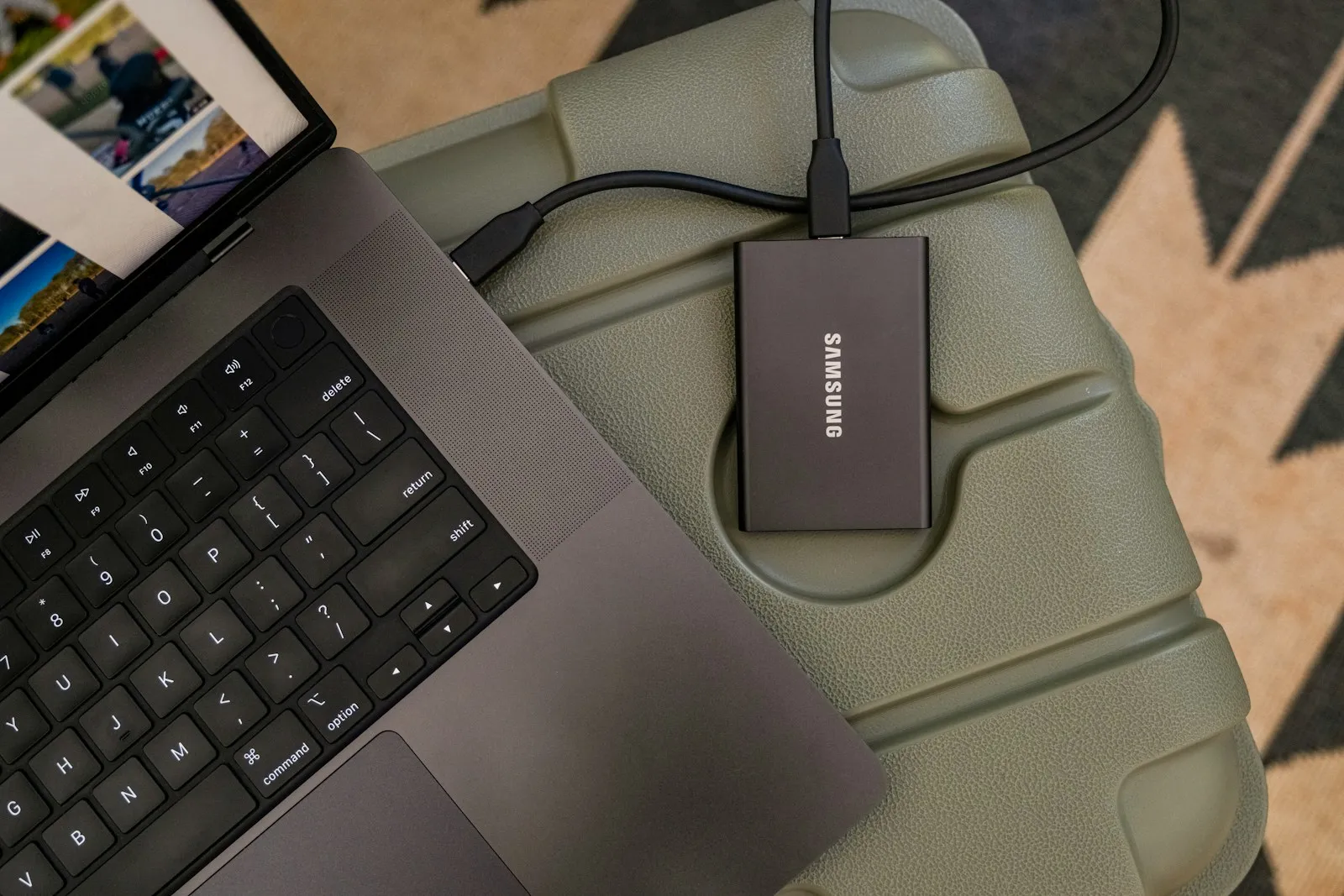
We often think about backups after something has already gone wrong: an update failed, something was deleted by accident, or we need to move the site to another server.
Having a backup gives us a way to recover the work and information we’ve accumulated. But for it to be useful, we first need to know what to save and how to restore it.
What should a backup include?
It depends on how your site is built, but there are generally two important parts:
- The site files: these may include code, themes, plugins, images, and other uploaded documents.
- The database: this stores information such as page content, posts, users, and various settings.
If your site uses WordPress, for example, it’s important to include the uploads folder, where images and other media files are usually stored. You also need a copy of the database to recover the content and its settings.
Exporting content is not always enough
WordPress lets you export content as an XML file. This can be useful for moving posts, pages, and other data, but it doesn’t necessarily replace a full backup of the site. That’s why it’s useful to check what each backup includes and what you would need to get the site working again.
Store backups somewhere else
If your only backup is on the same server as your site and something happens to that server, you could lose both. That’s why I recommend keeping at least one backup in another secure location and keeping it up to date.
It’s also important to know how to restore it. A backup we’ve never tested may not work when we need it.
A tool I recommend for WordPress
If you work with WordPress and are looking for hosting, one option I recommend is Kinsta. I’ve used it and it has worked very well for me, both for managing sites and working on them during development.
Kinsta offers automatic daily backups and lets you restore them from its dashboard. You can also generate a downloadable backup of the files and database to keep somewhere else. It’s worth checking the options and frequency available for your plan and your site’s needs.
Another tool I like is DevKinsta. It lets you create and work on WordPress sites on your own computer, which is useful for developing and testing changes before taking them to the live site. It integrates with Kinsta, although you don’t need to purchase its hosting to use it.
These tools make the work easier, but I still recommend knowing the recovery process and keeping an additional backup in a secure location.
You don’t have to wait for something to go wrong. Knowing where your backups are, what they contain, and who can help you restore them is a way to protect the work behind your website.
Photo by Samsung Memory US on Unsplash.
- security
- backups
- wordpress